

Loading...


Claude lets you put instructions in a lot of places, and it's easy to get confused about what should go where. Should your preferences be global or live in the project? Where do the rules for Cowork belong? And what's the actual difference between project instructions and a CLAUDE.md file in Cowork?
When you put instructions at the wrong level, one of two things usually happens: you end up writing the same rules over and over, or Claude behaves differently than you expect because a rule applies more broadly or more narrowly than you thought. Neither makes Claude pleasant to use.
This guide walks through the four places you can put instructions, what belongs in each, and how to pick the right level when you're not sure.
Note: The Claude app changes quickly, and menu names may change. The principles below still hold even if a button moves.
First, the most important point: the four levels work together. They don't fight each other. Claude reads several levels at once and stacks them on top of each other. The global instructions are the foundation that applies to everything, and each level below adds more specific context for a narrower situation.
A simple rule: the broader something applies, the higher up it goes. Your name, language and general tone apply to everything, so they belong at the global level. A specific folder structure only applies to one setup, so it belongs at the project level.
When you write a rule, ask yourself one question: how broadly does this actually apply? The answer tells you the level.
The four levels, from broadest to narrowest:
CLAUDE.md: project-specific in Cowork, but can be shared with othersThese are the instructions that apply no matter what you're doing in Claude, whether you're in a regular chat, in a Project on the web or in Cowork. This is where you put the things you want to apply all the time: who you are, which language you prefer, the tone you like, and the general rules for how Claude should work with you.
You'll find it under Settings → Instructions for Claude (called personal preferences in some places in the app).
Keep it short. This isn't the place for project details, folder structures or technical rules. A good rule of thumb: if you can't read through your global instructions in 15 seconds, they're too long.
Claude has a good memory feature that stores, among other things, your personal profile and preferences. So you don't really need that in your global instructions anymore. Below is the only thing I have in mine:
- When something is unclear or you need more information: ask (AskUserQuestion), don't guess.
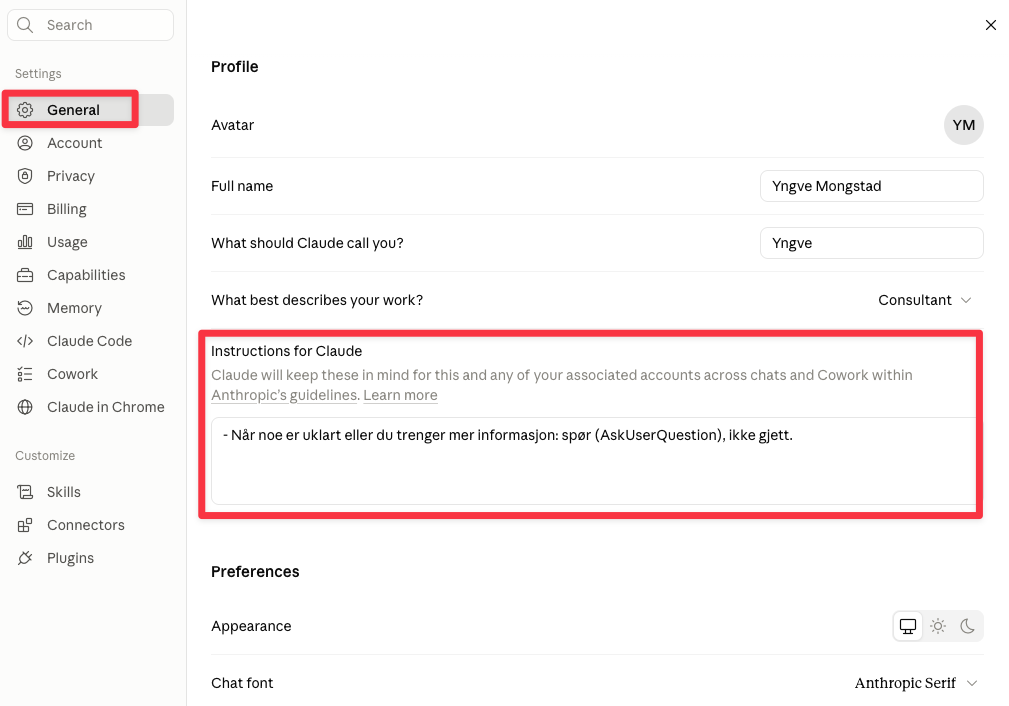
You don't need to repeat these rules further down. The global level always applies, so when you write project instructions you can assume Claude already knows what you've put here.
On top of the global instructions, Cowork has its own place for instructions that only apply to Cowork, across all your Cowork projects. This is the level for how Claude should behave when it's working directly with files and folders on your computer.
You'll find it in the Claude app under Settings → Cowork.
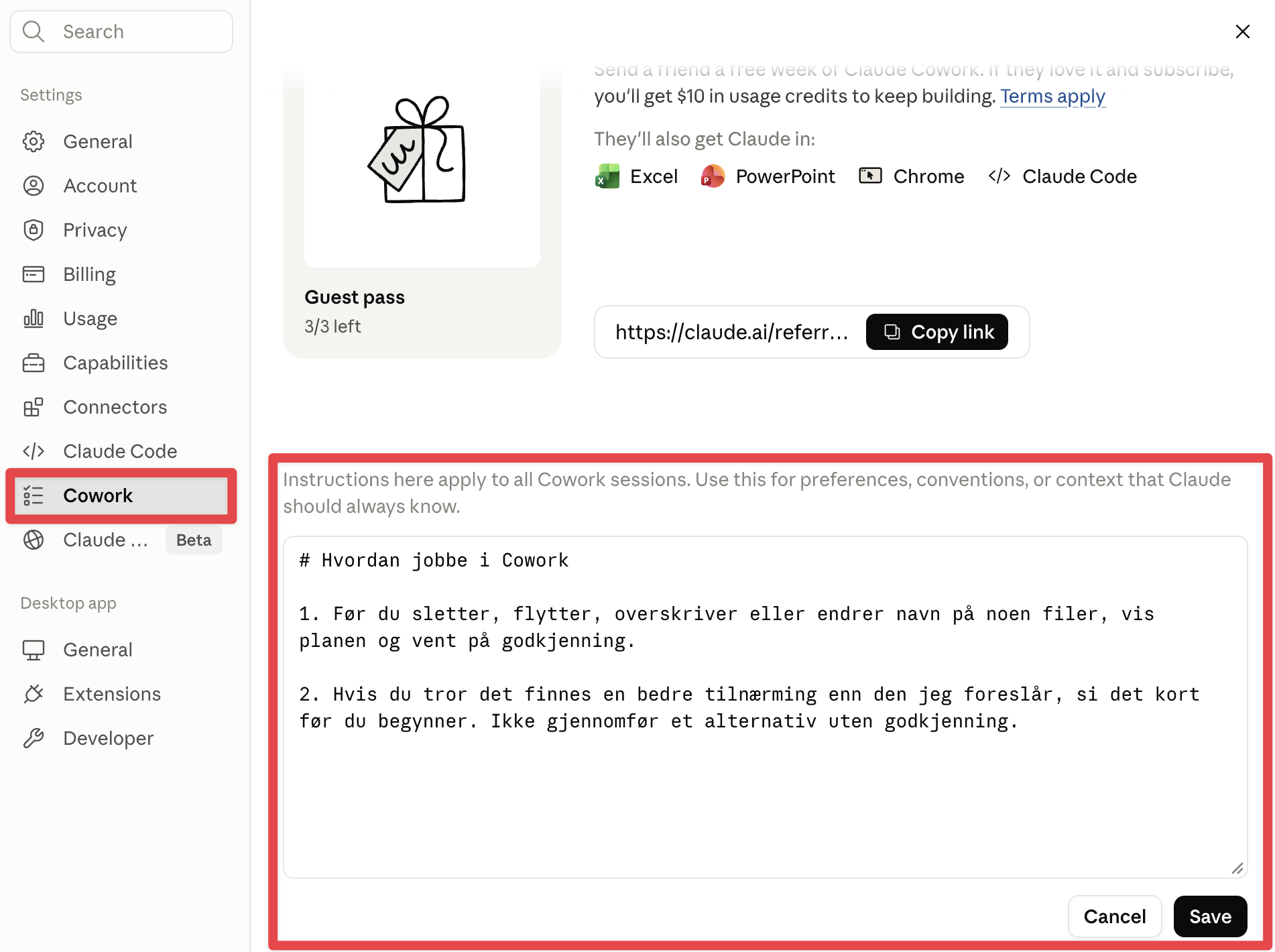
The difference from the global instructions is simple: global says who you are and what you generally prefer, while Cowork global says how Claude should work with your files. Things like approval before changing files, what it takes before Claude deletes something, and how it should handle uncertainty belong here.
Here's an example of the instructions I have in Cowork.
# How to work in Cowork

1. Before you delete, move, overwrite or rename any files, show me the plan and wait for approval.

2. If you think there's a better approach than the one I'm suggesting, say so briefly before you start. Don't go ahead with an alternative without approval.
These are rules I want in every Cowork session, whatever project I'm working on. That's why they live here and not at the project level.
There's a separate guide on how to set up Cowork here.
When you create a Claude Project, it gets its own instructions, and they only apply to the conversations inside that project. This is the place for context about one specific stream of work: what the project is about, who the audience is, what style and output format you want, and the rules that only apply to this particular work.
You'll find it by opening the project and clicking "Instructions" above Files.
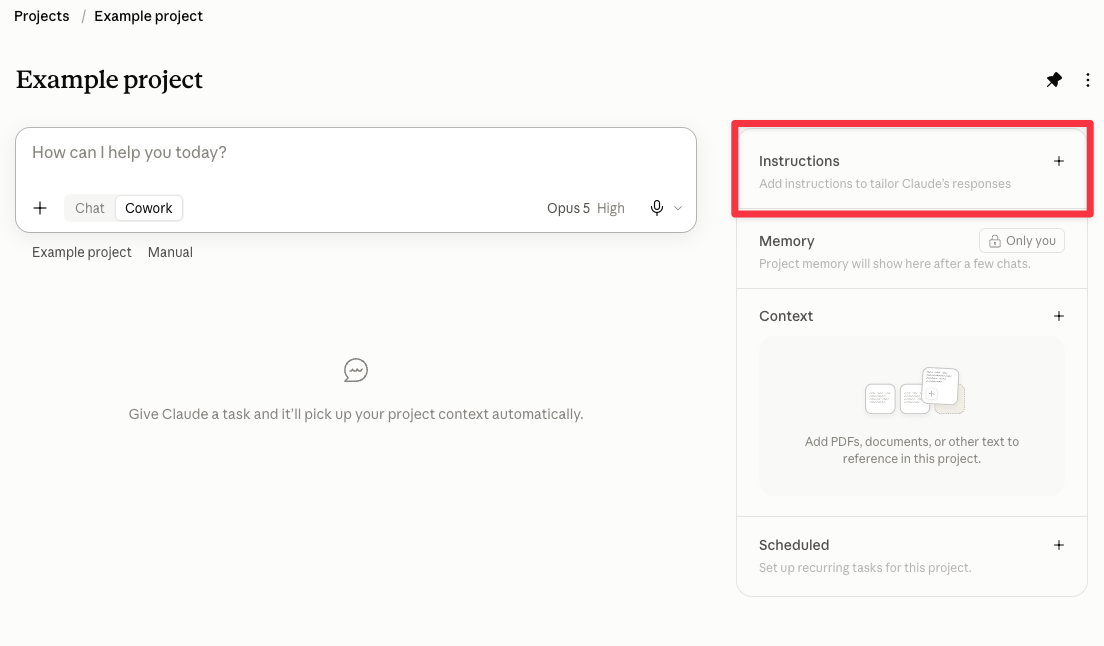
Project instructions work on every plan, including the free one. You can also upload documents to the project's knowledge base, so Claude has real examples and content to work from and not just instructions.
There's a separate guide on how to set up projects in Claude here.
This is a bonus section for those who want to go a bit further. Claude Code uses a CLAUDE.md file that sits right in the project folder, with instructions that are read automatically at the start of every new conversation. Cowork is a "light" version of Claude Code, so the exact same thing works in Cowork.
So these aren't instructions stored somewhere in the app. It's a dedicated markdown file (.md) called CLAUDE.md, placed in the Cowork folder that's connected to your project. It's a plain text file, and Cowork reads it automatically every time a new conversation starts.
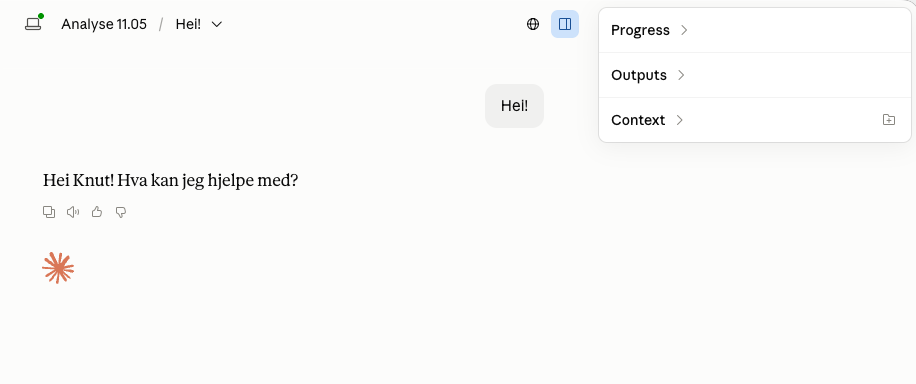
My name isn't Knut, but I've added a rule to CLAUDE.md telling Claude to always call me Knut in this project.
The main difference from the project instructions above is that this lives in a file. That means the instructions go with the folder if you move or copy your Cowork folder. It also means they apply to everyone working in the same folder, so it's a way to share instructions if the Cowork folder is shared with others, for example through Google Drive or Microsoft OneDrive.
Another use case: you use Cowork on folders on your computer but don't want to set them up as Claude projects, and you need separate instructions for each folder. CLAUDE.md solves that.
When you're not sure, ask yourself one question:
A good habit is to start high and move down. Put a rule at the broadest level where it belongs, and only move it to a narrower level once you notice it really only applies in one context. If you do the opposite and put everything at the project level, you'll end up rewriting the same rules for every project.
The levels are meant to complement each other, not contradict each other. But if two levels give conflicting instructions, the general rule is that the narrowest level wins: a project rule beats a global rule, because it's more specific to the situation you're in.
Still, the best fix is to avoid the conflict in the first place. If you find yourself overriding a global rule inside a project, that's usually a sign the global rule was too specific to be global. Move it down the hierarchy, or remove it altogether.
 Claude Cowork
 Claude Projects