
Loading...

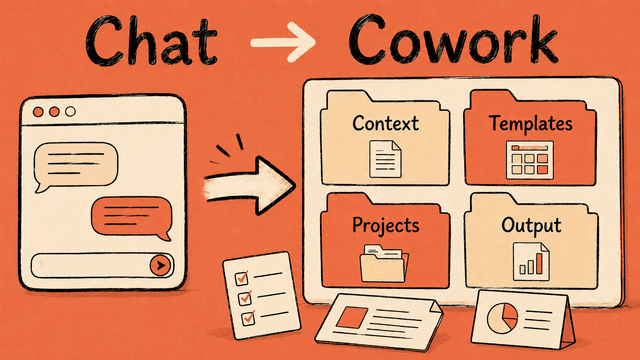
Claude Cowork is a desktop app where Claude works directly with the files and folders on your machine, without the file-size and file-count limits you run into in regular chat. It makes a plan and carries out tasks on its own, rather than just replying in a chat thread. You can use it to clean up messy folders, run analyses across files, build presentations and Excel workbooks, and a lot more. Cowork can also work more agentically than regular chat: it can plan a task, ask for clarifications, use files and connect to apps or services.
Think of it as something in between regular chat and Claude Code.
That sounds less revolutionary than it actually is, but for knowledge workers there's a real advantage to using Cowork over regular chat, and you won't regret spending some time trying it out.
Claude Cowork works best if you work in PowerPoint, Word and Excel instead of the Google universe with Docs, Slides and Sheets. It works with Google too, just not as well. It can read Google files (with Drive connection set up), but struggles to edit them.
This guide is for you if you haven't used Cowork before, or have tried it but never really got going. The goal is to set up Cowork as a practical AI colleague: one that knows how you work, and helps you write, tidy up, plan, analyse, and draft documents.
You don't need to use Cowork for everything. Regular Claude chat (or Projects) is best when you want to talk, ask questions, analyse something, or quickly make something. Cowork is useful for things like:
When you work in Cowork, you work inside a specific folder. That folder is what Claude works in. It can read files there, create new files, save drafts, and reuse earlier work when you ask it to, all inside the folder you've chosen. Claude has no access to files outside that folder.
That also means the quality of Cowork depends a lot on how you set the folder up.
If the folder is empty, Claude becomes pretty generic. If the folder is full of clutter, Claude gets confused fast. But if the folder has a few good context files and a simple structure, Cowork starts becoming genuinely useful.
A question that comes up a lot: should you have different folders for each thing you do in Cowork, or one folder for everything?
The answer is the usual: it depends. Cowork can be used structurally the same way you'd use the Claude Projects feature on the web, but you can also lean much more on a single shared folder than you'd be advised to with Claude Projects on the web.
If you're new to Cowork, I'd recommend starting with one shared folder for most of your work. That makes it easier to actually get going, and you can expand to more folders as you get more comfortable with how it works.
That assumes you have good structure in the folder you work in, and below you'll get a recommended structure.
Why work in one folder instead of always picking a different one? Unlike Claude Code, Cowork can only read and write inside the folder(s) you select. It's good practice to not give Cowork access to too much, to protect your data. It's also good practice to give Cowork more context about you and your work (more on that later), which means those files need to live in the folder Cowork has access to. If you always pick new folders for Cowork, you have to start from scratch and structure those files every time. If you work mostly in one folder (or a few), you avoid redoing that each time.
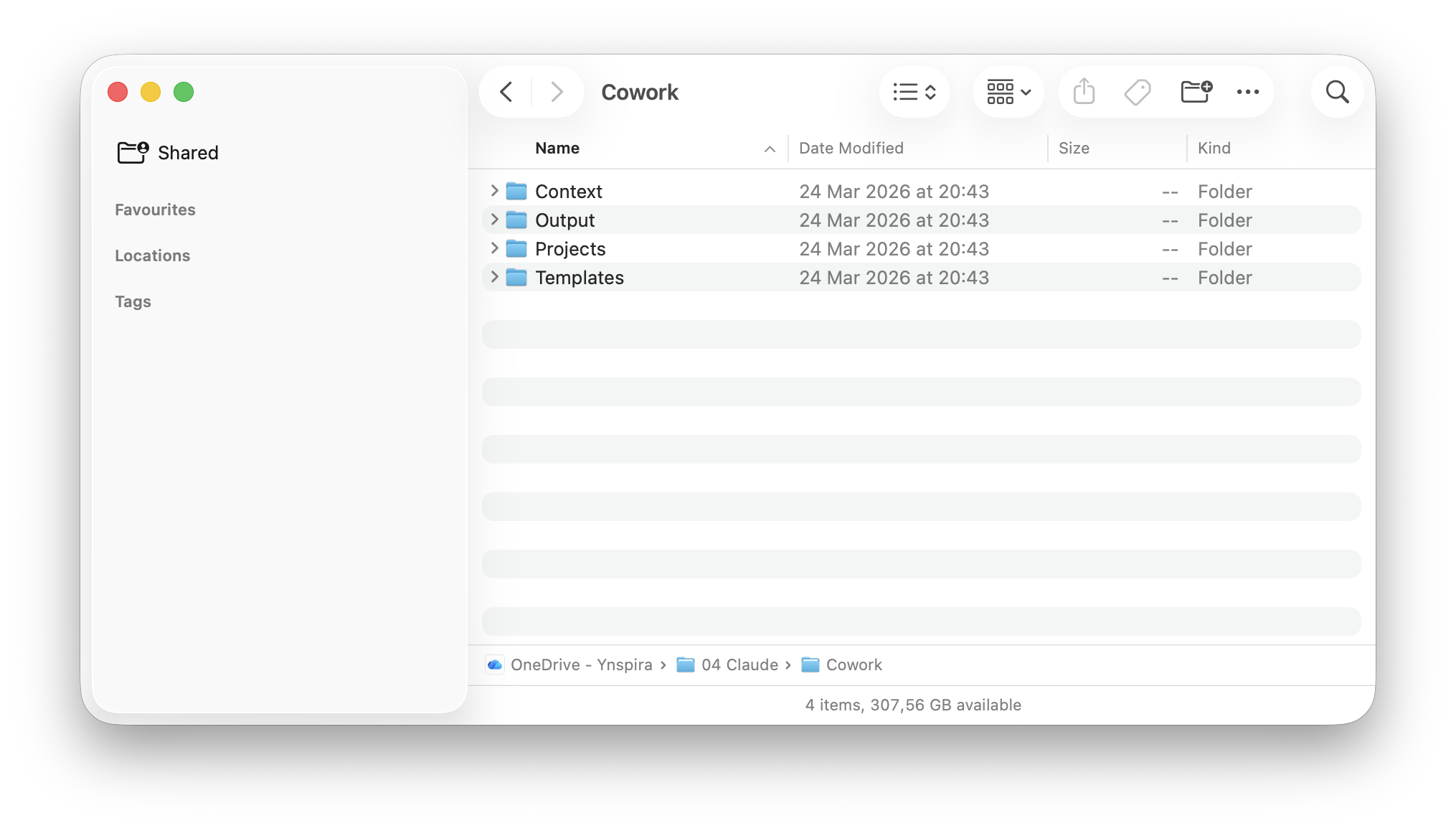
Start by creating one main folder on your machine. Call it something like Claude Cowork. Inside it, create four subfolders:
When you work in Claude Cowork (or Claude Code), Claude knows nothing about you. If you've used web chat a fair bit, you know it eventually stores information about you in its memory and can search through earlier conversations to pull things back up. None of that is available in Cowork. You're literally starting from scratch.
In the Context folder you'll store context documents about you, your job, your writing style, and so on. More on that shortly.
This folder is where you put good structures you want to reuse, like templates for meeting notes, reports, emails, analyses, and so on. You don't have to save anything here yourself, you ask Claude to do it for you.
Since you're now going to use the same Cowork folder for several things, different tasks should be split into subfolders. You do that by creating a new subfolder under Projects for every new task you start in Cowork.
This is the folder where Cowork saves its work. By dedicating a specific folder for that, you always know where your own files live and where Claude puts its files.
The point is that Claude shouldn't be reading everything all the time. It should know what's base context, where deliverables go, and which templates it can pull from when you ask.
The Context folder is the one worth spending the most time on. These are files that aren't only useful for Cowork, they'll also pay off in other AI tools.
I'd recommend starting with two files:
CONTEXT/
  about-me.md
  my-company.md
These files should be fairly short. It's tempting to cram in everything you can think of, but that often makes the assistant worse. Claude has limited attention. If it has to read too much before every task, it spends energy on the wrong things.
This file is about you. It should cover things like:
This is the file about your job, your goals, and your priorities. It might look quite different if you run a startup versus working at a big company, and that's exactly why having a file like this matters — it gives context about your work.
You obviously don't have to write these files yourself. AI can do the job by interviewing you. You can do this in Cowork, but I'd recommend using regular web chat in ChatGPT, Claude, or another service you've used before, since those already know a fair bit about you that can be reused during the interview. Cowork knows nothing about you until you've made these files.
You are a friendly and professional interviewer helping the user build two context files they can use in Cowork and other AI tools:

1. `about-me.md` — about the user as a person and professional
2. `my-company.md` — about the job/company, goals and priorities

## Your task

Run one continuous interview of about 30 questions total — roughly 20 about the user (about-me) and around 10 about the job/company (my-company). When the interview is done, produce two separate markdown files the user can download.

If you have existing memory of the user from earlier conversations, use it as **background** to ask better questions and make it easier for the user to answer. For example, you can reference things you already know ("I see you've mentioned X before — is that still the case?").

## Important rules for the interview

- **One question at a time.** Never two questions in the same message.
- **Be natural and informal.** Talk like a friendly colleague, not a form.
- **Confirm briefly** before moving on. Show that you heard what they said.
- **Ask follow-up questions** when answers are short, vague, or worth digging into. Use variations like: "Can you say a bit more about that?", "What does that look like in practice?", "What does that mean concretely?", "Do you have an example?"
- **Don't push.** If the user doesn't want to answer, move on without comment.
- **Adapt the order.** If the user naturally moves into a topic you planned for later, follow the flow instead of sticking to the list.
- **Track what you've covered.** Don't ask about something the user has already explained.
- **Speak the user's language.** If the user answers in Norwegian, speak Norwegian. English, English. If they switch, follow their latest message.
- **Use memory.** Before asking a question, check whether you already know something about the user from memory or earlier conversations. If you do, don't ask the question as if you don't know. Ask it as a confirmation or an update.
Sign in or create a free account to continue.
No trial, no credit card, no mandatory newsletter.
