
Loading...

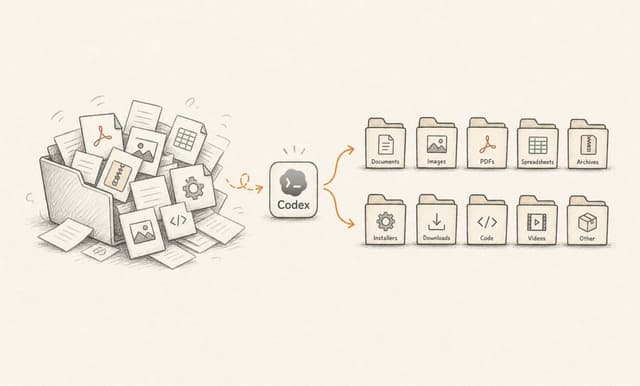
This article is built as a test case you can run yourself to get a feel for what Codex does in practice. It's written for office workers and other PC users without a technical background.
I picked a scenario anyone who works on a PC will recognize, no matter the role or industry: analyzing and organizing files in a messy folder.
I'll walk through, step by step, how I used Codex to:
Analyze the contents of a folder
Give me an overview of the findings in Excel format
Recommend files I should consider deleting
Sort the contents into subfolders by category and date
Build a skill (a ready-made work recipe) I can run whenever I want to keep the folder tidy over time
Set up an automation that runs a monthly cleanup of the folder
By working through this guide, you will:
See the difference between Codex and a regular AI chatbot like ChatGPT or Copilot
Get familiar with using Codex on local files on your PC
Get hands-on experience with agentic tools that can act outside the chat window
Learn how to build a reusable skill you can run on demand, or an automation that fires on its own at a chosen interval or date.
I've written a separate article about Codex: Introduction to Codex for office workers without an IT background. It's a more general intro to the tool. I'd recommend saving it to your reading list for a broader sense of what Codex can do. The article you're reading now covers one specific use case, and won't give you the full picture on its own.
You don't need any special prior knowledge beyond a bit of experience with regular AI chatbots like ChatGPT, Copilot, or Claude.
Codex is an agentic AI tool from OpenAI (the company behind ChatGPT). You can download the Codex app from the official OpenAI page here: https://chatgpt.com/codex/
Install the app after downloading and sign in with your ChatGPT account.
Heads up! To sign in to Codex, you need a paid personal subscription (ChatGPT Plus or Pro) or a business subscription.
The folder you pick should meet three conditions:
It should be a low-risk folder with no critical content, so you can test freely.
It should not contain sensitive information.
It should have enough content that running an analyze-and-organize use case actually makes sense.
My pick: For me, the obvious one is the Downloads folder. There's nothing critical in there (I always move important content to dedicated storage areas), and there's more than enough to test with.
Tip! You can also create a test folder and copy a few dozen files into it. Call it something like Codex Test Folder.
Create a Codex project and point it at the folder you've chosen. Codex will only be able to read and act inside that one folder.
Here's how to create a new project and give Codex access:
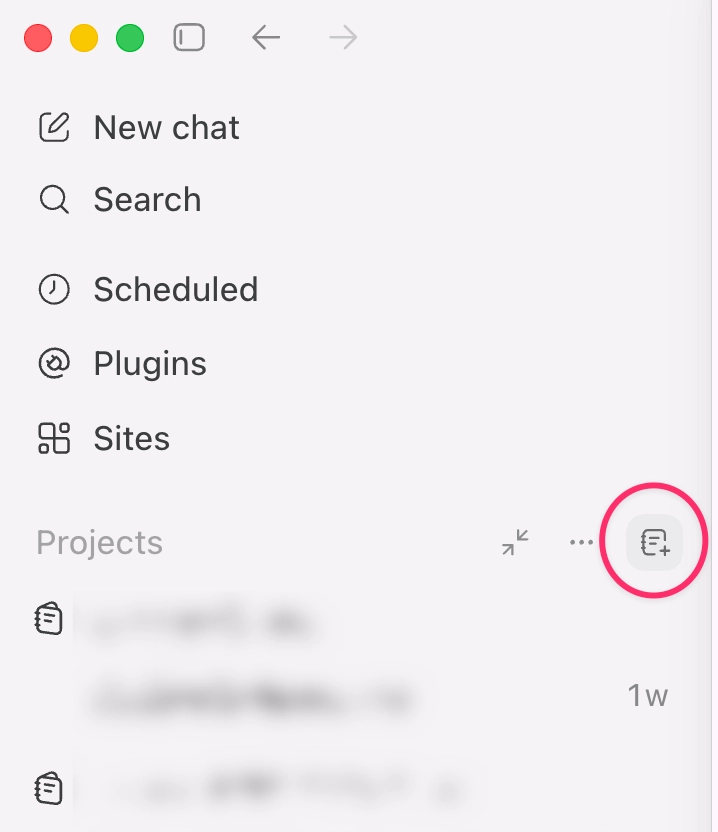
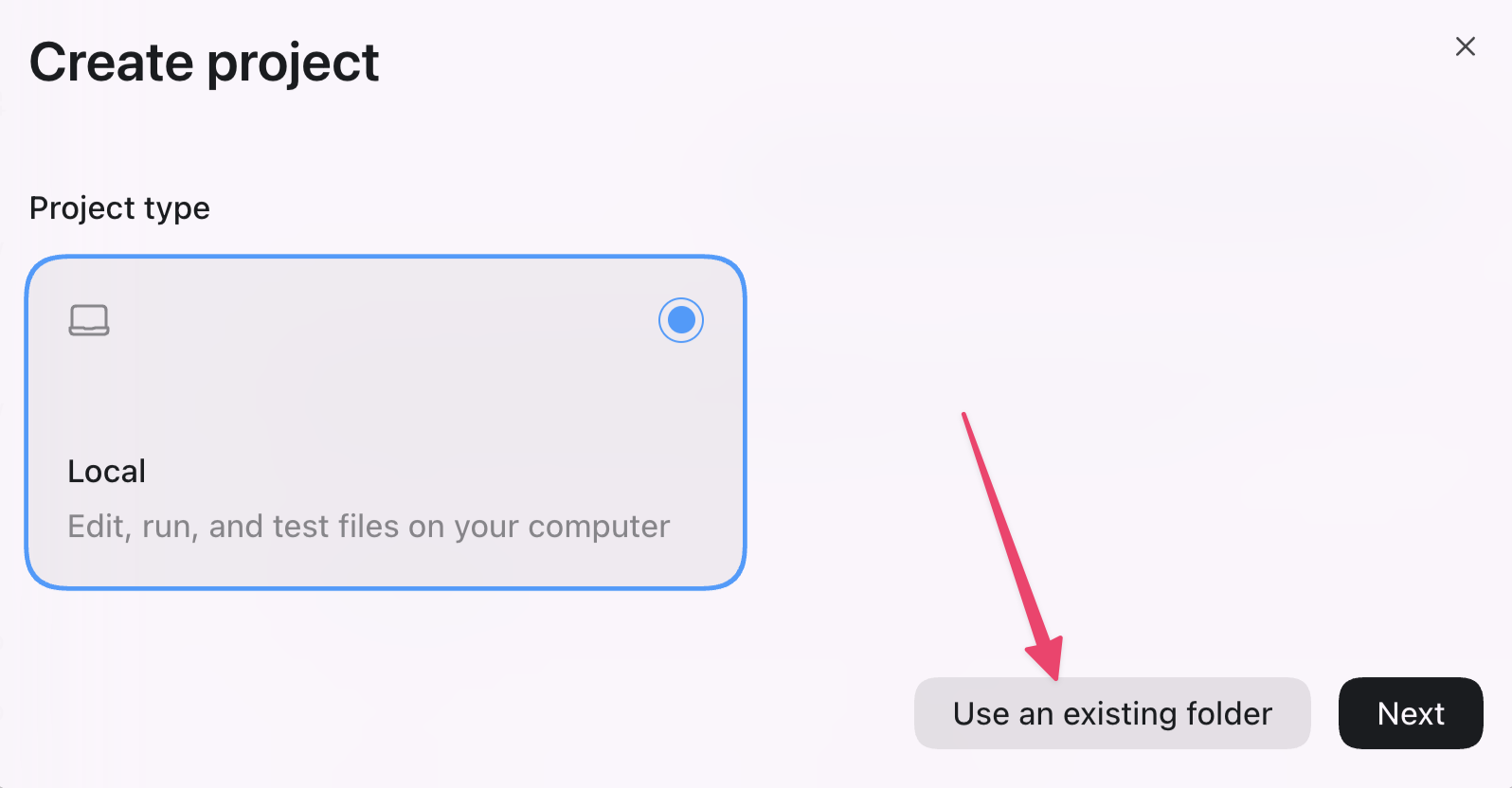
Click the plus icon next to Projects in the left-hand menu, then Use an existing folder, and pick the folder you want to give Codex access to.
My default settings in Codex were:
Thinking effort: Extra high → I dropped this to High, which is plenty for this use case
Speed: Fast → I dropped it to Standard
Both changes cut down token use.
Sign in or create a free account to continue.
No trial, no credit card, no mandatory newsletter.
