
Loading...

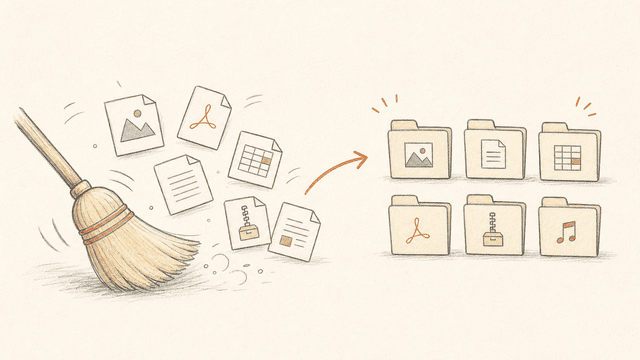
A hands-on test case that shows how to use Claude Cowork to analyze, organize, and automate a file cleanup.
This article is meant as a test case you can run yourself to get a feel for what Claude Cowork actually does. It's written for office workers and other knowledge workers without a technical background.
Claude Cowork is a desktop app where Claude works directly with the files and folders on your PC instead of just replying to you in a chat. Cowork only gets access to the folder you point it at, not the rest of your machine, so it tends to feel much safer for beginners than Claude Code. This article walks you through how to test and get started with Claude Cowork using a concrete, easy-to-follow use case that takes about 20-30 minutes (depending on the size and complexity of the test folder you choose).
I picked a test scenario anyone who works with a computer will recognize, whatever their role or industry: analyzing and organizing files in a messy folder.
I'll walk step by step through how I used Claude Cowork to:
Analyze the contents of a folder
Give me an overview of the findings in Excel format
Suggest files worth considering for deletion
Sort the content into subfolders by category and date
Create a skill (a ready-made workflow) I can trigger whenever I want to keep the folder tidy over time
Set up a scheduled task that runs a monthly cleanup of the folder
By following the steps in this guide, you'll:
Understand the difference between Claude Cowork and a regular AI chatbot (like Claude chat, ChatGPT, or Copilot)
Get familiar with using Cowork to work with local files on your machine
Get hands-on experience with agentic tools (tools that can take action outside the chat window)
Learn how to build a reusable skill you can run on demand, or a scheduled task that runs on its own at times you pick
AILO also has a more thorough guide for setting up Cowork as a working tool: "How to use Claude Cowork". It walks you through how to structure a Cowork folder, create context files, and add instructions at different levels. The goal there is to set Cowork up as a permanent assistant that knows you and how you work. Worth adding to your reading list if you want to learn more about setting Cowork up well across many different scenarios.
You don't need any special background to follow this article beyond a bit of experience with regular AI chatbots. Claude Cowork isn't available in the browser, so you have to download and install the Claude desktop app.
Installation
Cowork is part of the Claude desktop app. Download the app from claude.com/download, install it, and log in with your Claude account. Open the app and click the Cowork tab.
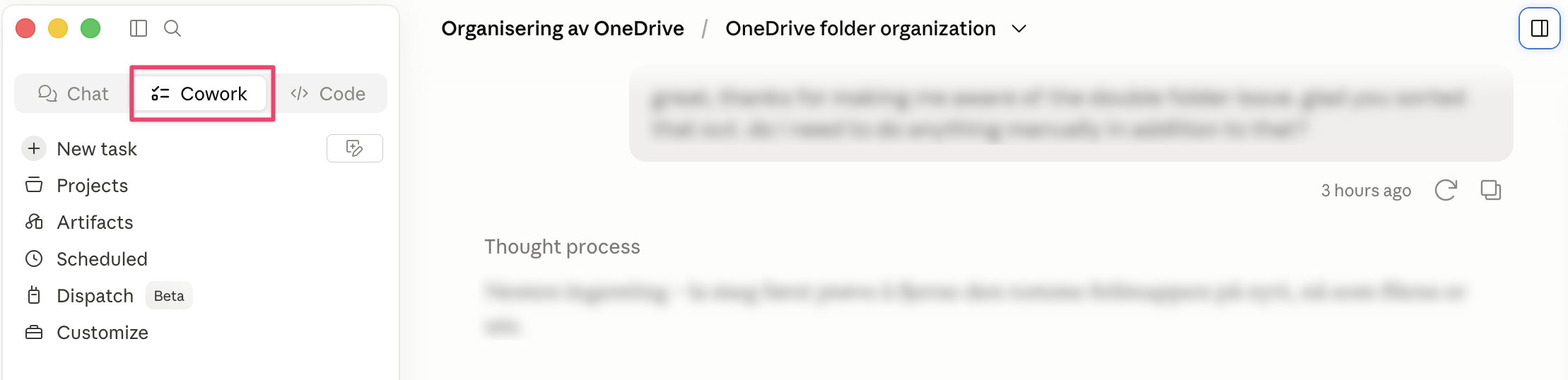
Heads up! To use Cowork you need a paid Claude subscription (Pro, Max, Team, or Enterprise).
The folder you pick for this test case should meet three requirements:
It should be a low-risk folder without critical content, so you can test freely.
It shouldn't contain sensitive information.
It should have enough content that testing analysis and organization is worth doing.
My pick: I'm using my OneDrive folder. I've moved over to Google Workspace for business, so OneDrive isn't where I keep important work files anymore. It's turned into a kind of test environment where I try out Copilot and other AI tools. Which makes it a perfect fit: full of random content, but nothing critical or sensitive.
Tip! No suitable low-risk folder? Make a test folder and copy in a few dozen files. Call it something like "Cowork Test Folder".
Cowork works with folders that live locally on your PC. OneDrive and Google Drive are cloud services (the files sit in the cloud, not on your PC), but you can set up sync so the files land on your PC too. That way you can reach your cloud files from Finder (on Mac) or File Explorer (on Windows). That's what makes it possible to give Cowork access to the folder using the method I describe in this article (rather than Connectors). As long as your cloud folder is synced to your machine, Cowork can work with it like any other local folder. The changes Cowork makes sync back to the cloud and to your other devices as usual.
Create a Cowork project and connect it to the folder you picked. Cowork then gets access to read and make changes in that one folder, and nothing else.
Here's how to set up the project:
Open the Claude app, pick Cowork, click Projects, and pick New Project.
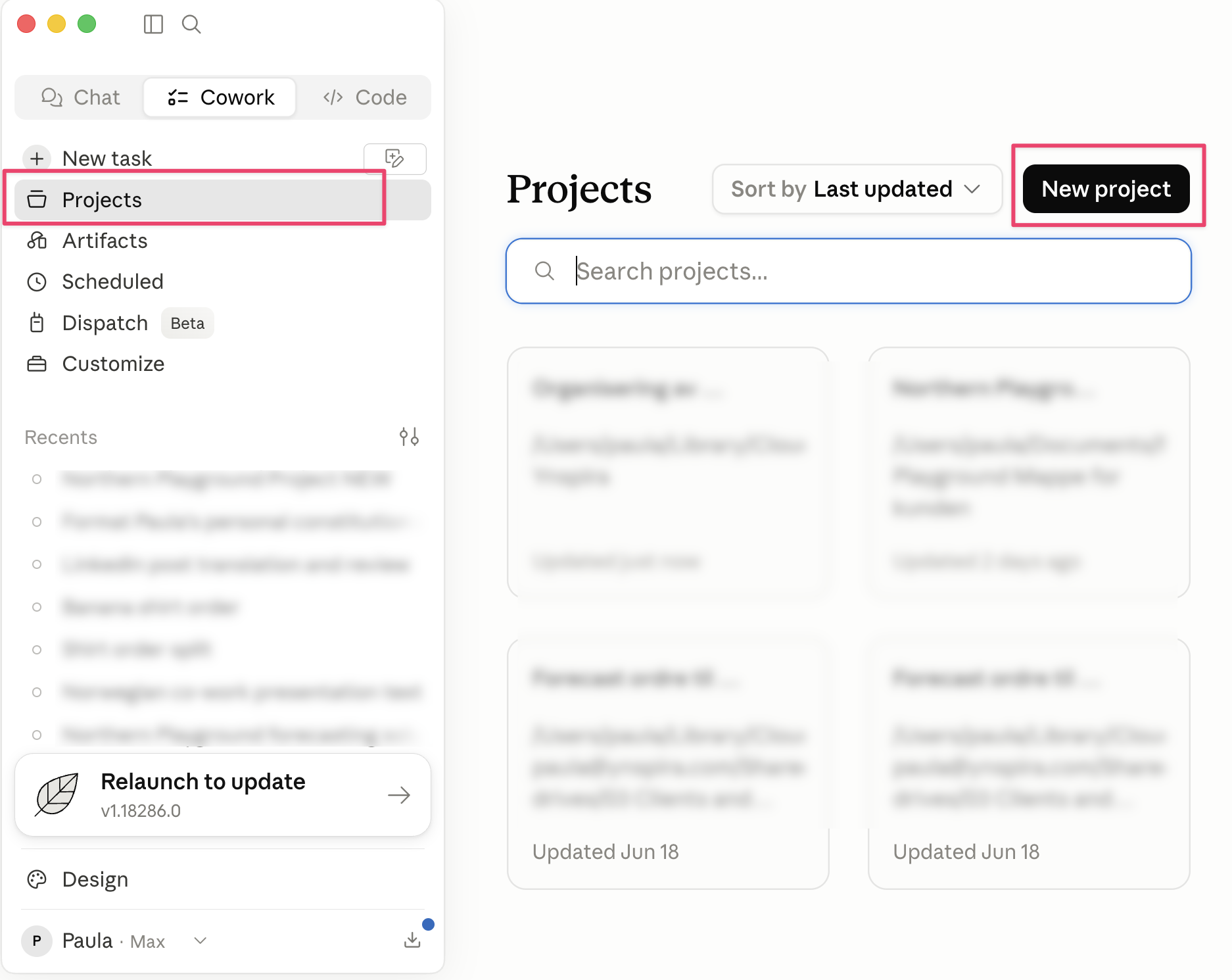
Then pick "Use existing folder" and choose the folder you want to tie the project to.
Cowork can only read files that are stored locally on your machine. Files that are "online only" (not downloaded) have to be pulled down first. Here's how to tell them apart:
On Mac (Finder):
☁️ Cloud icon next to the file = online only, can't be opened
Empty field (no icon) = stored locally, can be opened
🟢 Green circle with a check = always local, can be opened
On Windows (File Explorer):
☁️ Blue cloud = online only, can't be opened
✔️ Green check in a white circle = downloaded locally, can be opened
✅ White check in a green circle = always local, can be opened
How to make a folder or file readable for Claude Cowork: Right-click the file or folder and pick "Always keep on this device". OneDrive downloads it, and the cloud icon goes away (Mac) or turns into a green check (Windows).
Sign in or create a free account to continue.
No trial, no credit card, no mandatory newsletter.
