
Loading...


Curious about Claude Code, but figured it looks a bit too technical?
Then Codex, a new agent tool from OpenAI, is a good place to start. It gives you a lot of the same capabilities, but wrapped in a way that makes it really easy to get going with.
The name Codex is a little misleading. You don't have to code, and you don't need any special interest in AI, to get value out of it. If you work with documents, emails, spreadsheets or presentations (so, pretty much every office job out there), Codex is probably relevant for you.
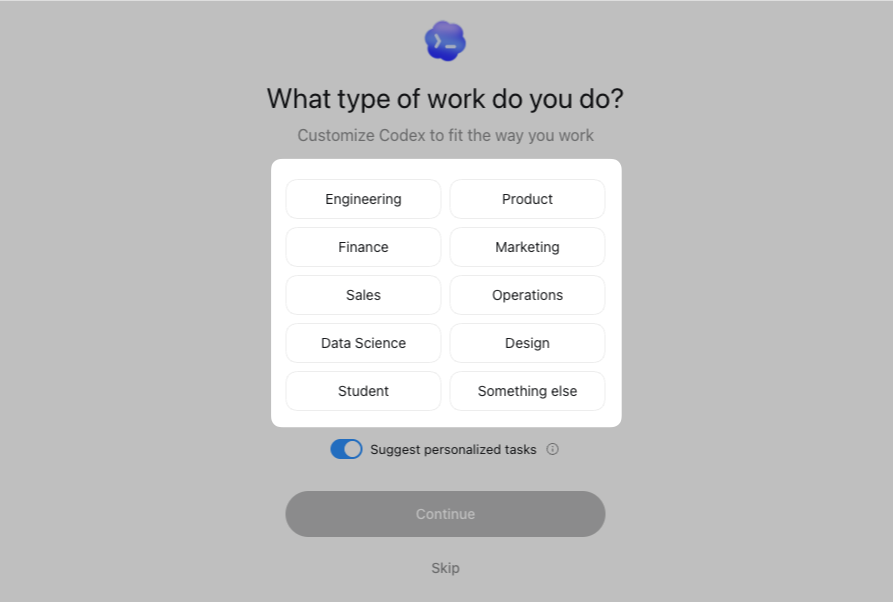
The Codex interface looks a lot like ChatGPT, but it's a completely separate tool. You can download the Codex app for macOS or Windows. It's only available on paid plans: ChatGPT Plus and Pro (for individuals), and Business and Enterprise (for companies).
Codex is OpenAI's new agent tool, and it can work directly with the files and projects on your PC. It doesn't just reply in a chat. It can read, change and create files for you. You can also give Codex access to many of the other tools you work with, like Outlook, SharePoint, Teams and a lot more, so it can carry out tasks there too.
If you haven't used this kind of agent tool before, ease in slowly. Give Codex very limited access at first (a few test folders, say), and learn how it behaves before you let it touch important folders or systems.
This guide is a general introduction to Codex for those of you who haven't used anything like it before.
I'll walk through the five most important features in Codex, with examples from a typical office day. The goal is to help readers without an IT background get comfortable with what the tool can do, all explained in plain language without unnecessary technical jargon.
Let's get started.
The first and probably biggest difference from ChatGPT: you can give Codex access to the files on your own machine. Thankfully you don't have to grant access to everything. Start with a single folder.
How is this different from just sharing some files with an AI chatbot?
When you chat in ChatGPT or Claude, you have to upload files every time. Those files get cached in the cloud at the AI provider. With Codex, you just point at a folder, and the agent reads, edits and creates files there.
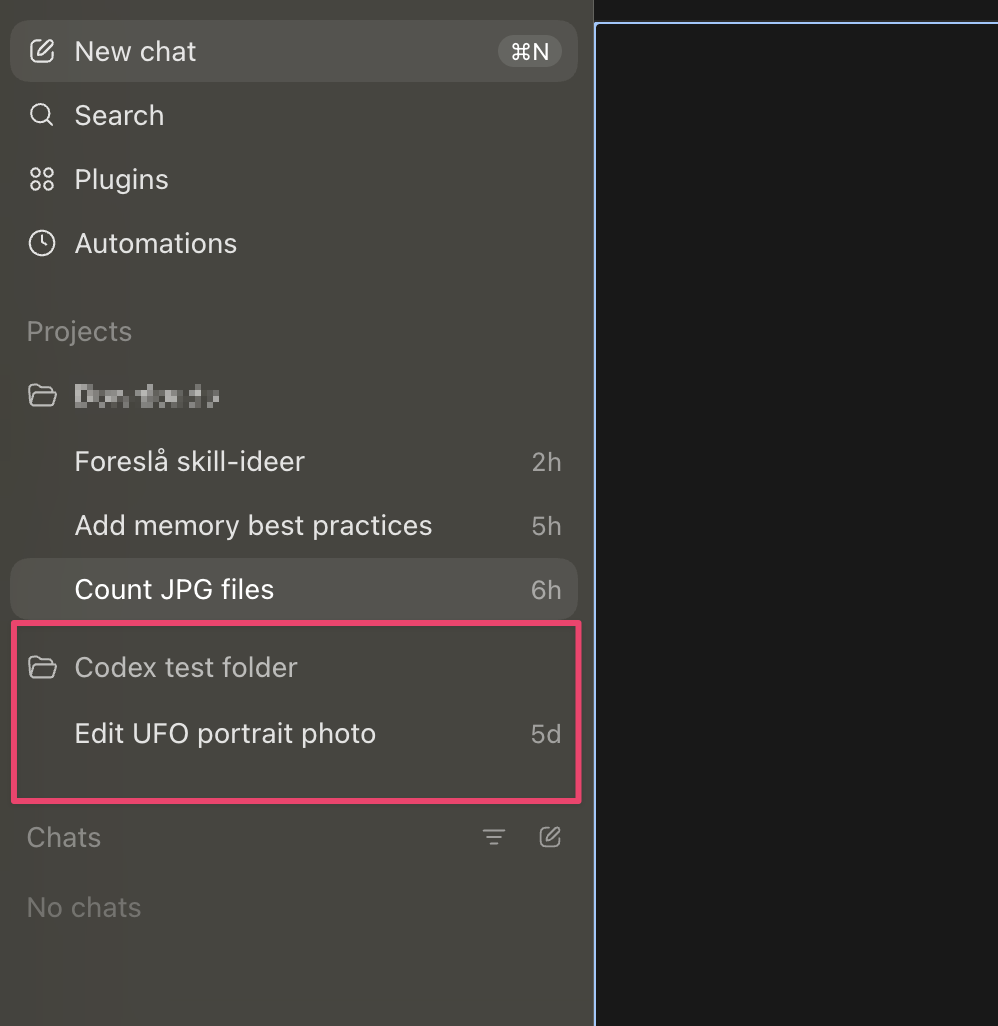
For example. Say you have a folder with 150 invoices, a mix of PDFs and images. You can ask Codex:
The folder Invoices contains my supplier invoices. Analyse them and make an Excel sheet that shows total amount, breakdown per supplier, and monthly trends. Save the sheet in the same folder.
Codex finds the folder, reads every invoice (including the ones that are just images), drops the numbers into a spreadsheet, and saves it where you told it to.
The same idea works for any other type of file: meeting notes, contracts, applications, client letters. If it lives in a folder on your machine, Codex can help you analyse it and present the findings in whatever format you want.
Sign in or create a free account to continue.
No trial, no credit card, no mandatory newsletter.
